Binarium trading platform: read the ticket first
The most useful way to understand the Binarium terminal is to read a potential order from left to right: selected asset, offered profit rate, investment amount, expiration and Up/Down direction. The trading screen is a tool for placing predictions, not a machine that can promise correct outcomes.
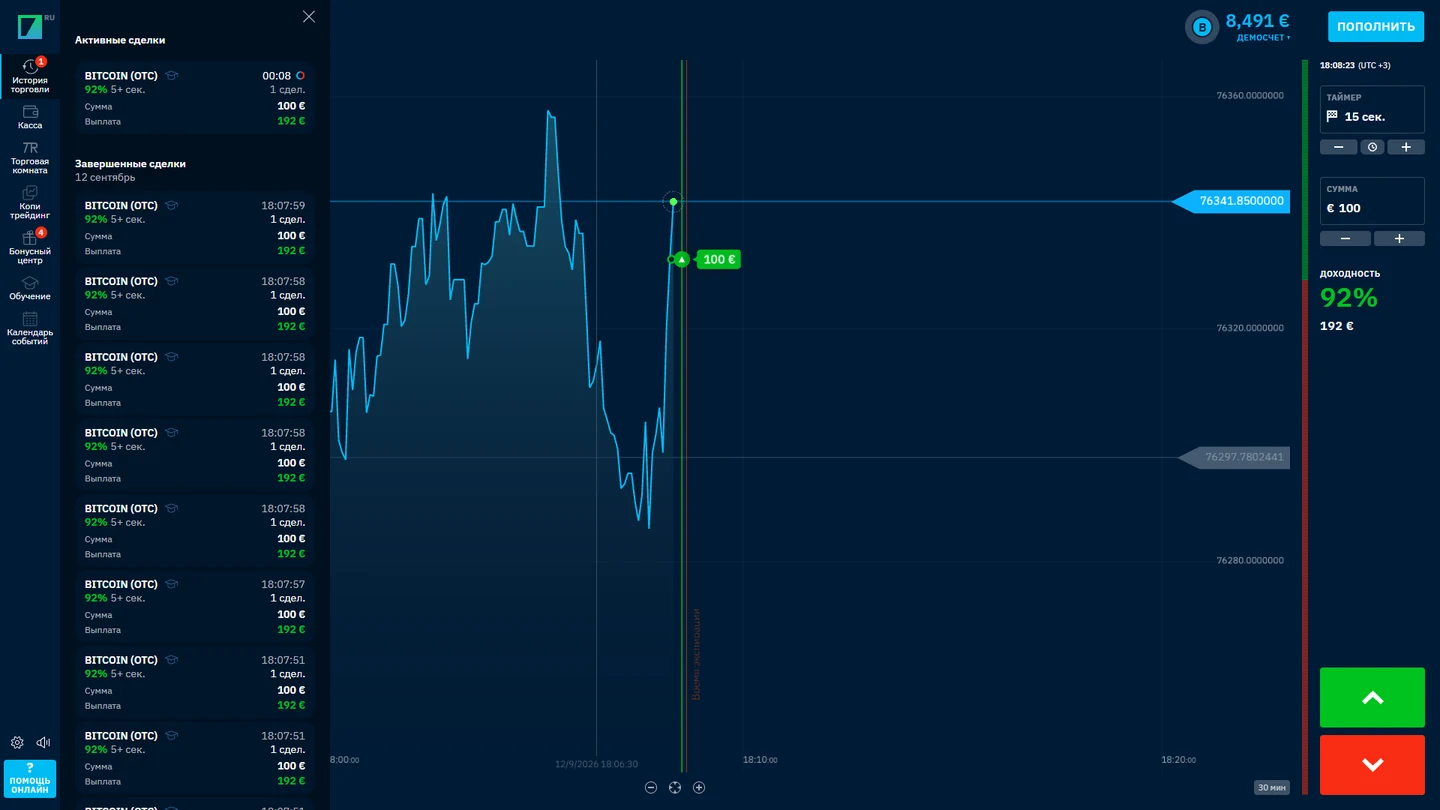
The original interface screenshot lets readers locate the trading fields. It cannot establish a permanent return percentage, execution conditions or the exact appearance of the English account today.
Offered terms can vary from one asset to another.
The deadline to enter is not the settlement time.
Do not mistake the returned stake for extra profit.
Asset, expiry, amount and payout: four different controls
Before testing a trade, identify which field changes the instrument, which changes the stake and which sets the closing time. The profit rate is a separate term: it influences the profit on a successful forecast, not the size of the original stake.
Asset selector
Choose a trading instrument and inspect the terms currently shown in the terminal.
Investment amount
The amount exposed to a potential loss in the example contract. Never read it as the net profit.
Expiration
The displayed closing point for this order, separate from the chart’s candle interval.
Displayed profitability
An example percentage that turns into net profit only when the defined winning outcome occurs.
Exact assets and offered rates are live platform conditions, not permanent properties that can be safely copied from a promotional screenshot.
Three clocks: entry cutoff, expiry and candle timeframe
The operator FAQ identifies a blue dashed line as the deadline for entering the order and a red line as its closing time. Neither of those is necessarily the same as the timeframe used to draw a candlestick. A five-minute candle does not independently tell you when an order will settle.
The time setting that changes the contract
Consider a hypothetical chart with five-minute candles. The candle interval only defines the grouping of displayed quotes. It does not establish the contract expiration, and it says nothing about the last instant at which an order may be entered. Treat the order ticket, chart scale and any entry-cutoff marker as separate controls.
- Chart timeframe: how many minutes are represented by one candle.
- Entry cutoff: when the interface stops accepting a particular entry, if such a marker is displayed.
- Expiry: when the opened contract is due to settle under its stated rules.
This is a conceptual example, not a claim that any particular clock time or asset is currently available in Binarium. Record the chosen amount and displayed payout before confirming an order; use the completed-history record to evaluate the outcome.
- Locate the entry deadline
This is the point up to which the offered trade may be entered under the displayed terms.
- Read the expiry separately
The expiration is the settlement point used to evaluate the contract outcome.
- Treat timeframe as chart formatting
Candle period describes how quotes are aggregated visually; do not derive order duration from it.
- Check the current version
Line appearances or control positions can change. Trust the active ticket more than an undated screenshot.
What the operator’s $10 / 90% example actually pays
The official Binarium support example uses an investment of $10 and an asset profitability of 90%. A successful outcome earns $9 net profit and returns $19 in total, including the initial $10. It does not produce $19 profit.
For a standard losing example, assume the whole $10 stake is lost. The calculator below offers hypothetical arithmetic with user inputs; it never reads a live quote or places a trade. Tie scenarios, cancellations and special mechanisms require checking current product terms.
The operator FAQ’s worked example: $10 at a 90% profit rate produces $9 net profit, $19 total credit; a losing example assumes the $10 stake is lost.
A complete order-entry and settlement workflow
- Confirm account mode
If learning, explicitly select Demo and verify that the virtual balance is active.
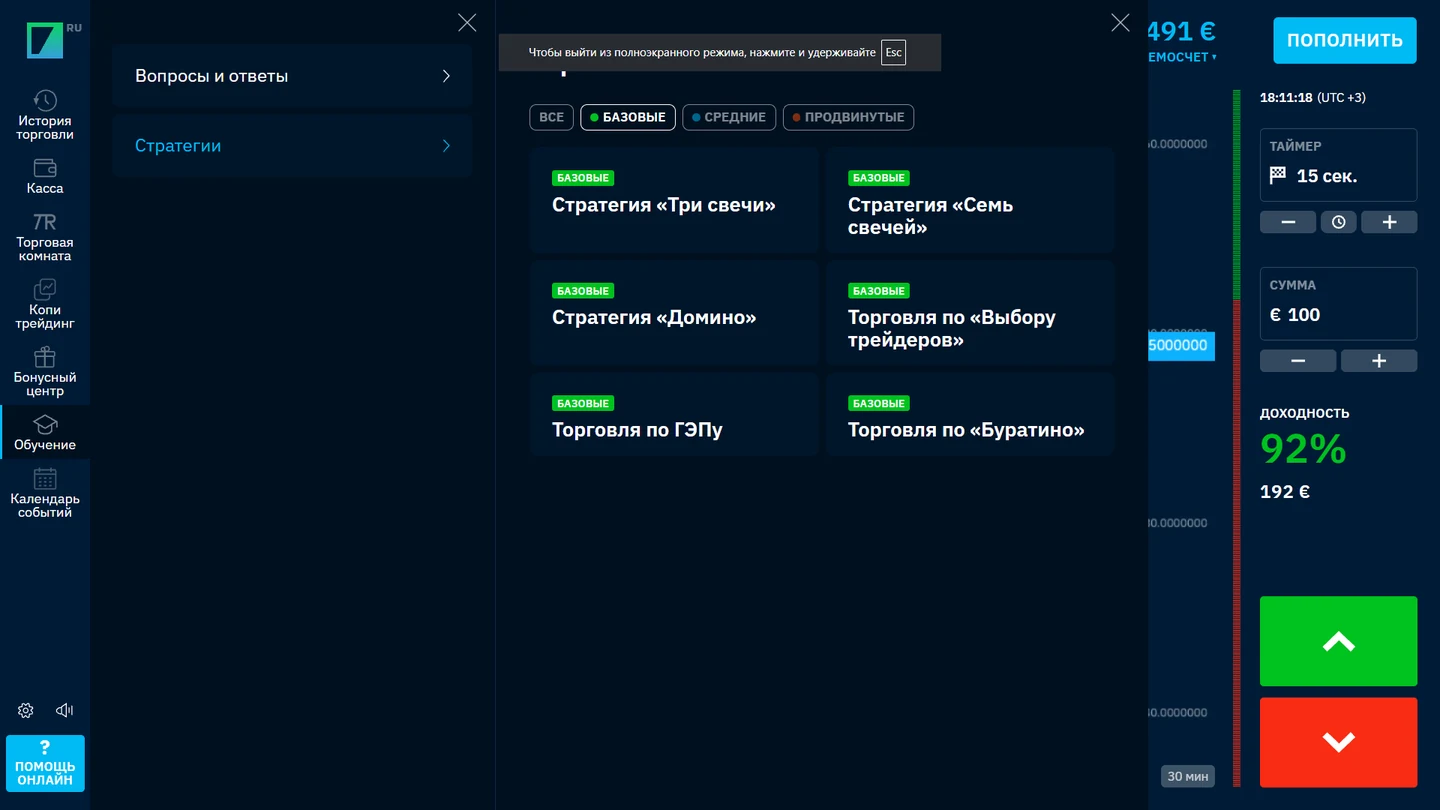
Old editorial media, 13 September 2026; recheck availability. IN-APP LEARNING VIEWA visible learning area proves only that those modules appeared in the earlier interface. It does not verify profitability or endorse any named strategy.
- Choose your instrument
Read the current terms for the selected asset instead of relying on a percentage seen elsewhere.
- Specify stake and expiration
Understand the amount at risk and confirm the closing time on the actual ticket.
- Submit the direction
Up and Down are price forecasts, not indicators that the platform endorses an outcome.
- Wait for settlement and inspect history
Compare the recorded expiry, outcome and returned amount with the original ticket.
Candlesticks and quotes: what the screen can and cannot prove
A candle groups price movement for a selected interval. Changing its width or timeframe can make a trend appear more or less dramatic, but it does not change the stake you have entered. Watch for bidirectional movement, the location of settlement and whether the displayed price is from the chosen asset.
Marketing pages sometimes list dozens of technical indicators or claim identical terminal execution across devices. We have not verified every such feature in a fresh live account. A dated interface screenshot can demonstrate what one version showed; it cannot establish permanently available functionality for all markets.
Observable in a live screenshot
Asset name, visible chart, current trade ticket and the labels shown at the time of capture.
Not established by a screenshot
Universal execution conditions, stable returns, full feature availability or future predictive accuracy.
From pending order to completed result
Order submission and order completion are separate events. A pending trade can still be exposed to price movement; the completed entry in history records how the specified forecast settled. Read the result alongside the order amount and return rate, not on its own.
If the credited amount seems larger than the expected profit, remember that a winning total may include the returned stake. If the history is unclear, look for the active account mode and verify you are examining the correct transaction rather than a simulated or prior one.
Desktop versus phone: same questions, different layouts
A wider screen may show the chart and ticket side by side; on a phone the same controls may be condensed into drawers or tabs. Never assume a hidden panel means a feature has been removed. Confirm the selected asset, expiry, amount and balance mode on whatever device you use.
For application-store details and current download routes, see our Binarium mobile-access article. For a separate explanation of virtual account selection, see the demo-account guide.
Comparing trading workflows without a broker ranking
Some products ask users to select a strike or offer a separate early-exit control. Those interactions are not automatically available in Binarium simply because they exist elsewhere. Our article on the IQ Option trading platform provides an example of a different interface workflow.
The link is a contextual comparison, not a recommendation to treat the two platforms as interchangeable. Verify the details of the actual instrument and do not infer a shared backend, identical settlement or matching product rules.
Which field is causing confusion?
Choose a scenario for a targeted explanation. These instructions do not connect to your account.
I changed a candle interval and expected the expiry to change
A chart timeframe and the order expiry are different controls. Use the ticket’s expiry field for the settlement time.
The displayed profitability changed
The value may differ by asset and current conditions. Recheck the active ticket before any new order.
My $19 credit looks like $19 profit
In the operator’s $10/90% example, only $9 is net profit; $10 is the returned investment.
I cannot find my completed order
Check the selected account mode and transaction history, then match asset and closing time.
The controls differ on mobile
Look for collapsed panels or a revised layout. Do not rely on screenshots captured in a different version.
Binarium order-ticket questions
What do I choose to place a trade?
An asset, stake, expiry and forecast direction, after confirming the active account mode.
Is the blue dashed line the expiry?
The operator’s FAQ describes it as the entry deadline; the red line is the closing time.
Does a 90% rate mean $19 net profit on a $10 trade?
No. In the worked example the net gain is $9; the overall credited amount is $19.
Can a trade lose the whole stake?
Yes. The standard losing outcome illustration assumes the $10 investment is lost.
Does the chart timeframe set the contract duration?
No. Candlestick period formats chart data, whereas expiry is a contract setting.
Can I learn the ticket using Demo?
The operator provides a virtual mode after sign-up without requiring a cash deposit.
Does this calculator predict the next result?
No. It only calculates hypothetical payouts from your own numbers and does not use market data.
Build understanding before any funded trade
Short-term directional trades can lose the entire stake, and a favorable displayed return rate does not tell you how often a forecast will succeed. Use a virtual balance to learn the interface and a separate loss-series calculator to appreciate drawdown before risking money.